Showing posts with label Tricks. Show all posts

Sunday, September 28, 2014

How to recall/unsend a text/SMS in your android smartphone easily ?

Did you just send an awful,idiotic text to your boss? Did you get really drunk and texted your ex really 
late at night?


If you did and wondering how to undo your SMS/text, in other words you need to unsend an SMS as quickly as possible. It’s not that easy to do that on any mobile device, but if you are an Android user then luck is in your side, one new app aims to make unsending an SMS as easy as possible.Yes, no need to plan about stealing the phone.
That app you ask is TigerText Secure Messenger, which can be used as a replacement for SMS/MMS messenger on any Android device. Above all,unlike other devices even if your recipient is not using this app this function will still work.
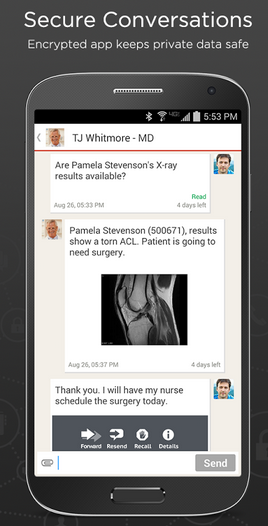
Here are the steps on How to make use of the unsend functionality in Android devices?

Step 1) Install TigerText app from here and set this this app as default.
Step 2) Type out your text messages using the this app
Step 3) Send the message, then tap and hold it
Step 4) Tap Recall to delete the text message from the recipient’s device.
NOTE--This function will only work if the recipient has not yet opened the message.
Step 5) To make sure that the Recall(*Unsend) function worked, check the green icon next to your message. This icon indicates that a message was successfully sent. If you successfully recalled(^unsend) that message, that green icon will not be there.
Really, recalling a text message doesn't get that much easier . You can switch your default SMS/MMS apps around from the in-app menu of the SMS app of your choice any time.

If you already know any such app do let us know and we will surely write about it in our next post.


Monday, August 25, 2014

How to reduce your DATA consumption?


Ever increasing apps on our smartphones require access to mobile data.And here comes the point which worry all of us when we aren't connected to any wifi network,The mobile data.
We don't get unlimited mobile data from most of the service providers(you may get but for that you have to spare out the money for what you use). So,in order to be able to use our mobile data for our decided interval of time we need to use it wisely.
You can try the following tips to decrease the mobile data usage.

(A). USE DATA COMPRESSION:

Some websites are not optimized for mobile and may use up a lot of your mobile data, while some websites may eat into your data through heavy advertisements.
You can avoid these hassles by using browsers that allow data to be compressed for android phones before it is downloaded on your device or handset, thereby reducing the data usage considerably. Although at times compression might mean compromising on quality, it still goes a long way in saving precious cellular data and thereby help to reduce your monthly cellular data usage. Opera and chrome are examples of such browsers that offer data compression.
 Now if you are open to compromising on quality you better use opera mini as your browser,it uses the mobile data very carefully and hence letting you achieve your objective of saving mobile data.

(B). DON'T CLEAR THE CACHE:

Now this is the most controversial point.I mean to say is we all occasionally keep on clearing the cache memory in our device to let our device perform faster and that is fine too.But the payoff price for this is more data usage because the cache is a component that stores data ready for use. When that data is requested again, by the browser for example, having it in the cache means that it can be provided faster and without requiring it to be fetched from the web server where it was originally held.
So clearing the cache and then browsing again means more data usage.

(C). TRY ONAVO EXTEND APP:

To compress and save your data Onavo Extend runs continuously in the background of your phone and directs all of your mobile data traffic through Onavo's server and compression technology.
Download now: www.onavo.com/apps/android_extend

(D). TURN OF AUTO LOADING OF IMAGES ON WEBSITES

If you are solely concerned with the content/text while you are surfing so it's better to turn off loading of images which will let you save a large amount of your data usage.

Sunday, August 24, 2014

Make your Android phone work like a new one

We all use our smartphone allot for every little work and install many useful applications, games in it. But our Android smartphones too become sluggish, bloated and out of shape over a period of time. Our smartphones accumulate so much data, applications, downloads over a period of time that they become overweight just like our body and need some refreshment to overcome those problems and work like a new one.

Here are some of the tips, a quick guide to shape up your Android smartphone.

Dump unused apps

Most of us have so many apps installed in our smartphones that we too are unaware of them. So, straight away go to settings and find your list of apps, under App manager, and uninstall those useless apps. There will be many apps which you don't use now. Just get them out of your Android smartphone. Yess!! dump them.


Download a tune-up app
Download an app to maintain your smartphone. There are number apps available in the Google Play Store, one of them is Power Tune up by Bitdefender. 

Once you install it and open it, you will see four icons for managing different aspects of your smartphone. One of them will keep a control over phone's battery consumption an important element. Keeping a check over you phone's battery life is a very essential aspect especially if you use your phone all day. This app offers low battery notifications, a battery saver mode and many features like this.

There is check mode which helps in keeping a check over log files, helps in emptying directories and duplicate files. You can also clean all your cached data by hitting 'Clean All' tab. 


Move your apps to phone's sd card
Free your phone memory and move your apps to sd card  (if sd card is supported :p ).
Move multimedia stuffs to your sd card or upload them to cloud storage and free up the phone memory helping the phone to use the free memory in smooth functioning of the apps, games you run.


Factory reset your phone
This is the last option to make your phone what it was on the day you first used it. Yes, the factory reset will move your phone to its original condition. Keep in mind once you factory reset your device it will loose all its data, apps installed, downloads, passwords saved, email ids, multimedia stuffs everything. So, it will be better to save your stuffs first. Make a backup first before hitting to the factory rest option.

And yea
Start fresh !!
:)

Source: InfoWorld


Wednesday, August 20, 2014

Google Secrets : Search tips and tricks

Everyday we use Google for getting information on absolutely anything. 

In this blog i am going to tell you those things or you can say the tips or tricks that will make your search on Google more accurate, specific and more productive. 


Yes, there are many secrets that Google have and you will be finding some of those as you go through the article. Excited ?? so lets start.

1. Using Operators   Be specific and Google will provide you the best results. Use operators to search anything, like for example enclose a phrase in quotation marks, like this, "Google tips and tricks". This searches for that specific phrase only. Adding a minus sign will exclude that word, for example xyz recipe - tomatoes.

2. Searching A Particular Site   Restrict your search to a single site by using site: operator. For example, you want to search about Windows on Techzoot then you might type Windows site:techzoot.com.

3. Define It   Using the define operator gives the dictionary definition of search and synonyms. For example define:entrepreneur will give you the definition of entrepreneur. 

4. What's Going On   Want to know what is going on in a particular city or like fancying a movie? Then type movie times Delhi, this will show what's particular with that city. Find more specific results by typing movie times PVR rohini will show what's on in that particular cinema.

5. Translate Languages    Need to translate something and you are really in a hurry?? Stop worrying Google is there. Just type translate language A language B and there you are with a translator positioned right on top of  the page.

This is all for now, will be updating soon with more tricks and tips to make your Google..ing more fun and more accurate.

Till then happy Google Searching :)

Source: TOI

Saturday, August 9, 2014

EXTENDING BATTERY LIFE MADE EASY


One of the most sad moment for teenagers like us is when our Smart phone's battery is about to die.
There's no direct way of extending the battery life but yes there are certain ways by which we can assure that our battery gives us power for long.I will be illustrating those tips and tricks in this post.

1.SCREEN:

The biggest culprit or rather battery sucker is our smart phone's screen.It just squander our battery.Now what can we do to save the battery is

(a)AUTO-BRIGHTNESS

Never ever use auto brightness.There are two disadvantages of it;
First it uses the sensor to determine what level of brightness we want,so in short we are wasting  more energy rather than saving it because we are using sensor.
Secondly,it always give us more brightness which actually we don't want.

(B)DARKER THEMES/WALLPAPER

Now you might be thinking that how could the theme/wallpaper of our mobile will help us to save battery.But friends it's true.It can make a difference.
To understand the difference,one must know the difference between AMOLED and LCD display(majority of smart phones are equipped with these two)
AMOLED stands for ACTIVE MATRIX ORGANIC LIGHT EMITTING DIODE
and LCD STANDS FOR LIQUID CRYSTAL DISPLAY.
I wont be giving you any technical knowledge about them but to explain in simple words just remember that in AMOLED displays(most of the samsung mobiles are equipped with that only)black is true black i.e. there's no back lighting for it.
While in LCD displays the black is true black i.e. it is lit up from behind(current actually flows from within the crystals to reflect us with black color).
So,moral of the story is that if you are owning an AMOLED screen smart phone the use dark(black) backgrounds.

(C)SHORTER SCREEN TIMEOUT TIME

Keep the screen time out time as short as possible,because if you aren't using your mobile phone then why to let it screen discharge your battery?
And when required you can increase the screen time out time.

2.KILL THE UNNECESSARY TASKS

Most of us do open the task manager frequently and swipe your fingers from left to right or vice versa to kill the tasks.And that is absolutely fine because why to waste the battery for the application you aren't using.
And those who don't do this,start doing it.It's gonna help you.

3.VIBRATE MODE

We keep our mobile at vibrate mode when we are at college/office and other places.But it takes more charge to vibrate than to ring.So when ever possible avoid using vibrate mode and if you are using your mobile very frequently then its better to prefer mute mode.

4.TURN OFF EXTRA SERVICES

Turn off Wifi,Bluetooth,Mobile data,GPS,auto-sync(your contact list is updated every fifteen minutes by this feature) like services as soon as you complete your work.
Ditch widgets you don't really need, especially those that are connected to the  internet like weather widgets.
Also don't keep mobile data and Wi-fi simultaneously active because it's of no use.How can one simultaneously use both features.

5.KEEP YOUR APPLICATIONS UPDATED

Sometimes we get irritated by repetitive updates of applications we get now and then.But friends it's good to keep our applications updated because it contains improvement in terms of feature as well optimization of battery life.
Change your Google Play Store settings to manual update your apps. If you have the Play Store set to auto-update, you might have fifteen apps updating when you least expect it, destroying your battery life (and data plan) without you realizing it.

Hope above tips may help you keep your battery life little extended than before.

Saturday, March 29, 2014

How to download free music on your android device??

It's such a hassle to transfer songs to your Smartphone from your PC or Laptop every time you download a new one. But what could be more amazing for music lovers to download the music right to their smartphones without having to transfer your favourite songs from your PC or Laptop. There are a number of apps available on the Google Play Store that lets you download mp3 songs for free on your Android device. But here we have picked some of the best ones for you-

Musicmaniac


This app is for all the music maniacs. Music Maniac app has been rated highly and is available for free on Google play store. This app lets you search and download millions of free mp3 songs from public search engine. It gives you various options for searching music.
You can search for songs by title or artist, or album, but you can also search for top songs by an artist, making it easier to just find a certain hit.

GTunes MP3 Music Downloader


This app is very simple and easy to use. Type in the search box what you are looking for and you will be good to go. Just like the other mp3 downloader apps, Download free music app allows you to play the song before you download it and you can pause or resume the download too.


MP3 Music Search Download


Mp3 Music Search Download Pro is a nice app for downloading free music from search engine and public domains.
What's great about this app is that you can actually edit songs, and set them as ringtone. Like other apps above the app also allows you to pause or resume the download as well as share the download link.

MP3 Music Download


MP3 Music Download is also a great app for downloading free music to your Android.
This app lets you download music from public domains via public search engines. Like the most other apss mentioned above it also has a search app making the things easier for you.


Thursday, March 13, 2014

How to get Samsung Galaxy S5 features on any Android device ??


DO YOU FANCY THE NEW FEATURES ON THE NEW SAMSUNG GALAXY S5? HEART RATE MONITOR,PEDOMETER, DOWNLOAD BOOSTER, SELECTIVE FOCUS, ETC.? WELL, HOW ABOUT IF I TELL YOU THAT YOU CAN GET THESE FEATURES ON YOUR CURRENT ANDROID PHONE. WITHOUT SPENDING A SINGLE PENNY...

YEAH, THAT'S RIGHT! IT’S THE ERA OF SMARTPHONES, AND YOU KNOW WHAT THEY SAY — “THERE IS AN APP FOR EVERYTHING“.

You can get most of the Galaxy S5 features on your Android device . However, features that are fully dependent on the hardware components may not substitute in the form of an app, like the fingerprint scanner on Galaxy S5, it cannot be substituted by just an app. But the heart rate monitoring has a completely different story. Apps like these could utilize the your phone’s camera to get heart rate, we’ll discuss on this in detail later.
Hmm...So before I start let’s take a look at some of the new features of Samsung Galaxy S5. Thankfully, Samsung has released an ad video detailing upon all the new features of its flagship device Galaxy S5.

Here's the video:-


Let’s see now what alternatives we can use in order to get these Galaxy S5 Features on almost any Android device out there. We’ll go sequentially with explanation of each feature and apps that can be used as an alternative for these features.


HEART RATE MONITOR

There’s dedicated hardware support on Samsung Galaxy S5 which lets users monitor their heart rate/pulse instantly on the phone. It works just by placing the tip of index finger on the heart rate checker (located on the back of your device, just below camera) for a few seconds and your heart rate bpm starts showing up on screen.The button is quite similar to what we saw in LG's G flex.
It’s exciting, but there is nothing new. Heart rate monitoring apps are available on Android since 2009 (5 years). Let’s have a look:

ALTERNATIVES: 2

The two apps provided below can check your heart rate without a dedicated heart rate sensor on the phone.
HOW? Heart rate can be monitored just by placing the tip of your index finger on your phone’s camera. The key part is that your index finger should be near some light source — if your phone has flash near the camera then it’ll surely work for lightning up your index finger, otherwise after placing your index finger on camera move your finger near some light source (a torch or a lamp) and you’ll be good.


  • INSTANT HEART RATE
Instant Heart Rate is one of the oldest heart rate monitoring app available for Android. This app works great and gives you highly accurate heart rate measurement with graphs/charts to make it easily understandable. It also alerts you if your heart rate is good, average or bad.

Runtastic Heart Rate
  • RUNTASTIC HEART RATE
Runtastic Heart Rate is a relatively newer app for monitoring your heart rate but it’s somewhat advanced than its older brother Instant Heart Rate app. Runtastic has intractive UI and allows you to compare or share your heart rate with friends and family on various social networks Facebook, Google+ and Twitter.

____________________________________________________________


DOWNLOAD BOOSTER

Samsung has introduced  an amazing new feature on Galaxy S5 that combines all the available internet connections on your device and then lets you use  the combined data speed to boost download speed of your device. The WiFi and LTE/2G/3G/4G connections are combined and then their commutative data speed is used to boost your download speeds.
Interesting isn't it you can get super high speeds plus it will optimise your usage so that you don't end up using one.

ALTERNATIVE  

Super Download Fast

  • SUPER DOWNLOAD – Fast

The Super Download – Fast app  will do the same magic of combining data speeds of all your available internet connections available on your device and then use it to give a boost to your current downloads. However, as you know this is kind of tricky stuff, the app requires root access to be able to combine these download speeds from WiFi and 2G/3G/LTE/4G.
On a good point, the app is also works as a download manager with support for increased concurrent threads to further boost your download speeds.
   DOWNLOAD SUPER DOWNLOAD LITE – Fast (FREE)   |   PAID VERSION


____________________________________________________________


PEDOMETER

Another fitness bonus that Galaxy S5 comes is an built Pedometer which intelligently counts all the steps that you have taken all throughout your day and then uses that data to show you how much health benefits you’ve gained just by walking. The Ghardware component to get the job done and 

unfortunately only three other phones on the market currently have dedicated hardware for counting steps — Nexus 5, LG G2 and Galaxy S4 Google Play Edition.

Anyway, the good news is that even if your device don't have the dedicated hardware component you can still manage to count your steps. While a hardware component might  help in saving some juice of your battery but then its no big deal. The job can also be done using other available sensors on your Android device — Accelerometer and Gyroscope.


Check out these cool apps given below to see it in action yourself:

ALTERNATIVES: 2

Noom Walk

NOOM WALK: PEDOMETER
Noom Walk has smoother interface, advanced features, with some social sharing options, Infact you can match up over the number of steps you take with your friends interesting isnt it. And most importantly the developers boasts that Noom Walk utilises even less than 2% battery during a day of use.
Runtastic Pedometer


  • RUNTASTIC PEDOMETER

Runtastic Pedometer is another amazing app to count the number of steps you walk throughout the day while using your phone. And while it’s almost similar to Noom Walk  feature wise, It has just one additional feature that it can tell you How fast you are walking.? That's Cool, right?


Galaxy S5 Selective Focus

SELECTIVE FOCUS

Galaxy S5 lets you create a blurred out background or foreground on your photos even after you have clicked them. It makes the photos look beautiful and gives your photos more detail now this is something for which DSLR camera’s are popular for.
I have seen some great apps on Play Store that lets you do the same thing, but then I have to admit that on Galaxy S5 it’s painlessly simple to do that, as compared to the alternative apps that I have shared below:

ALTERNATIVES: 2

After Focus

AFTER FOCUS
AfterFocus is the most robust and slicker app available on Play Store to defocus and blur out the background or foreground on your photos. However, unlike Galaxy S5 it doesn’t automatically blurs the background at one-touch, you have to select the area which you really want to bring in focus and the app will then blur out everything else on that photo.
Easy Focus


EASY FOCUS

Easy Focus is just another great app to perform SLR camera like blurring on background objects in your photos. The app’s interface is simple and like AfterFocus, you just have to select the area which you want to keep focused in a photo. You should give this app a try too along with AfterFocus.


 Galaxy S5 S Health

S HEALTH [Samsung's fitness app]

The S Health app on Galaxy S5 comes pre installed on other Samsung Galaxy devices as well. It helps you to keep a track of your fitness and sports activities.
There are plenty of such apps available on Play Store for tracking your fitness level and chances are that you might have already tried some of them. In case you haven’t, follow the links below:
  Runtastic: Runtastic has we already pointed out is the widest range of fitness apps available on Play Store.So do check out their apps.
  Endomondo: Endomondo is another great app to keep track of your fitness and sports activities.

_________________________________________________________________________________


Galaxy S5 Power Saving

POWER SAVING

"Samsung GALAXY S5 can last for 13 hours at battery level as low as 35% only"
Samsung has loaded in the best power saving features on Galaxy S5 ever possible,It could last for almost 13 hours at battery level as low as 35% Imagine!! no more need to keep those square portable bricks with you. There’s this ‘ULTRA Power Saving” mode on the Galaxy S5 that once you turn on your device display to Grayscale display it will block every background process on the phone keeping only the Call and SMS function active. We could easily imagine how much battery that can possibly save on a phone.
We did not find any app on the Play Store that could bring in such wonders, since it requires deep integration to system files of your device. And as of now I’m not aware of any custom ROM which can do that much power saving. But hopefully soon enough some developer might take up this idea and integrate it into a customized ROM.
Anyway, we have got some apps below that can still help to save you a good amount of battery power and are quite similar to other power saving modes available on the Galaxy S5:
Greenify


GREENIFY

Greenify lets you freeze background apps from running in background and take extra spin on your ram killing your battery. Once you freeze an app with greenify it’ll no longer be able to drain your battery ever, unless you use it often. If you have root access on your device then in that case you can even freeze system apps, but be very careful with that since it can lead to an unstable system if you freeze an app that’s actively required for the system processes.
Easy Battery Saver

EASY BATTERY SAVER
Easy Battery Saver takes the pain of you toggling between connectivity WiFi/Data/Bluetooth options to save your battery power. Plus, it couple of enhanced automated options for blocking certain apps from using data in the background and consuming both phone’s resources plus network data causing unnecessary battery drain. A must have app for your Android devices.
   DOWNLOAD EASY BATTERY SAVER

____________________________________________________________


Galaxy S5 HDR (Rich Tone)

HDR (Rich Tone)

HDR is short form for High Dynamic Range, this feature lets you capture photos with natural colors under any lightening conditions. With HDR, the camera captures the same image at different levels of exposure and then layers them up to create one fully optimized photo. It helps you to take pictures in high contrast situations, like near to an open window or when the sun is behind your subject.
Samsung names it “Rich tone” on its devices.
If you bought your phone last year then chances are that you already have these feature on your phone. Check in your camera app. If not, you can download this HDR Camera app from the Play Store (link below)
  Download HDR Camera


Comment below if you have any queries regarding this.Or tell us if you have more to it.


Liked this post??
Then feel free to share with your friends..Select the social buttons below.


Join our Gang and get notified about all the great posts we share on the go.
                        

                           FACEBOOK!  TWITTER!   GOOGLE PLUS!